 Corren
Published Updated
How to Get Your Website to Show Up on Google
Check whether Google has your site, remove anything blocking it, then use Search Console. Includes steps for Wix, Squarespace and GoDaddy.
By Aaron Chang, co-founder of Corren Studio
To get your website on Google, make sure the site is public, add it to Google Search Console, submit your sitemap, and request indexing for your most important pages. Then give Google links to follow. You usually don't have to submit anything, because Google says it "automatically looks for sites to add to our index." It also says noticing a new site or a change "can take a few weeks" (Google Search Central).
These steps work for a brand-new site and for an older site that has gone missing. None of them guarantee a page will appear. Google says a page can meet every requirement and still not be crawled, indexed, or shown (Google Search Essentials).
What you need before you start
- A published website on your own domain, if you have one
- A Google account to use with Search Console
- A login for your website builder and for the company where you bought your domain
Plan on about an hour of hands-on work, not counting any wait for a DNS record. Google can then take days or weeks to act on it.
First, check whether Google already has your site
Go to Google and search site: followed by your domain, with no spaces, like site:yourdomain.com. If pages from your site appear, you're in Google's index (Google's SEO Starter Guide).
The list may be incomplete, because this search "doesn't necessarily return all the URLs that are indexed" (Google Search Central). Use it as a quick yes or no, then use Search Console for the exact answer.
- No results: Google probably hasn't indexed your site. Start with step 1, and confirm with URL Inspection in step 4.
- Some pages appear, but not the one you want: Set up Search Console in step 2, then inspect that page in step 4.
- Your pages appear in this search, but not when you search for your service: Google has your site, and your problem is ranking. Skip to showing up versus ranking.
The steps to get your website on Google
Work through these in order. Each step ends with a check, so you'll know when to move on.
1. Make sure Google can reach your site
Open your site in a private browser window. If you're asked for a password, or you see a "coming soon" page, Google can't see your real pages either. Google says your content should be text-based and accessible without a login (Google Search Central).
Then look for a noindex setting. It's a rule that tells Google not to list a page, and website builders often offer it as a simple toggle. Google drops a noindex page from results even if other sites link to it (Google Search Central). The Wix and Squarespace settings are listed below. We couldn't confirm a current GoDaddy equivalent.
You're done when the site opens in a private window with no password and your key pages aren't set to noindex.
2. Add your site to Search Console
Google Search Console shows how Google sees your site, including errors that can stop it from understanding your pages. Sign in with a Google account and add your site as one of two property types, which Search Console calls a Domain or a URL prefix (Search Console Help):
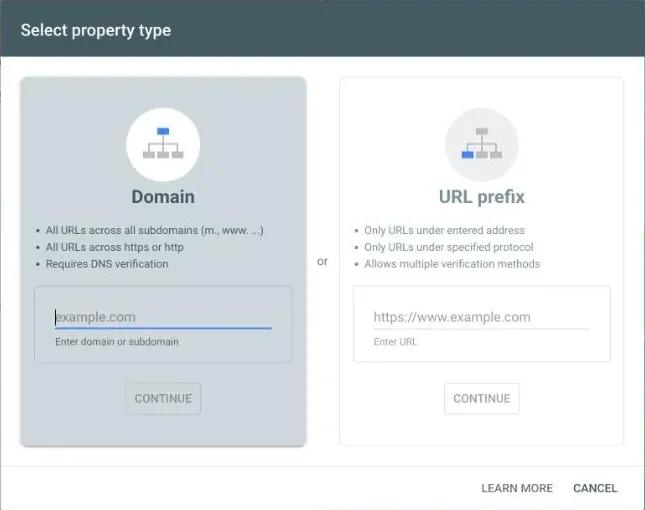
The two property types Search Console offers when you add a site.
Property type | What it covers | How you verify it |
|---|---|---|
Domain, like | Every subdomain, like | A DNS record, which is a setting at the company where you bought your domain |
URL prefix, like | Only addresses that start with that exact prefix | Several options, including an HTML tag, a file, Google Analytics, or DNS |
Choose a Domain property if you can log in to your domain provider, because it covers every version of your address. A manually added DNS record can take two or three days to start working, so try again later if verification fails at first. Keep the record in place afterward, or you can lose verification (Search Console Help).
You're done when Search Console shows your site in the property menu at the top left. Data may take time to appear.
3. Submit your sitemap
A sitemap is a file listing the pages you want Google to find. Wix and many other platforms create one automatically, so check before you try to build one (Google Search Central). It's often at yourdomain.com/sitemap.xml.
In Search Console, open Sitemaps, enter the address, and click Submit. The report shows when Google fetched the file and any errors.
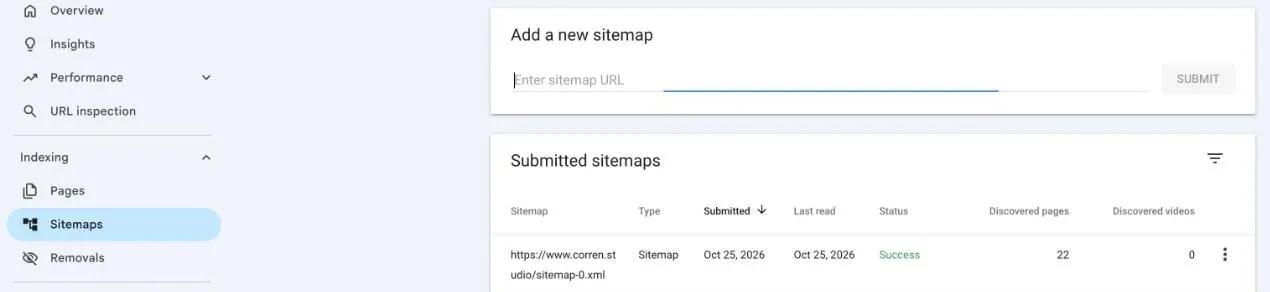
The Sitemaps page for corren.studio: add the address at the top and check its status below.
You're done when the sitemap's status reads Success.
4. Inspect your key pages and request indexing
Paste a full page address into the search bar at the top of Search Console. This is the URL Inspection tool, and its main status usually reads one of two ways:
- "URL is on Google": The page is eligible to appear, though it still may not appear for a given search.
- "URL is not on Google": The page can't appear yet. Open Page indexing to see what Google found.
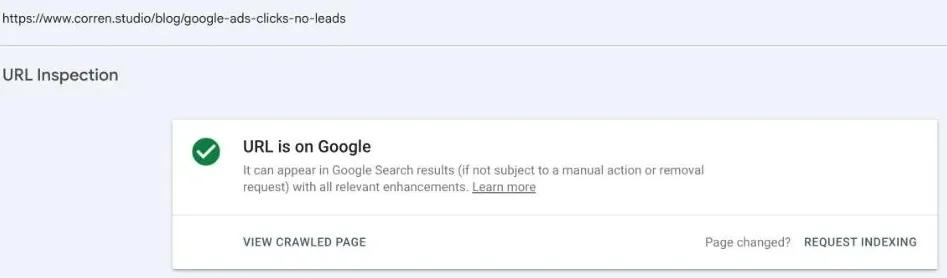
URL Inspection for one of our own posts. Request indexing is at the bottom right.
If the page isn't indexed and nothing is blocking it, click Request indexing. Save this for your homepage and main service pages, because there's a daily limit. Google says indexing "typically takes only a day or so, but can take much longer in some cases," and a request doesn't guarantee the page will be indexed (Search Console Help).
You're done when each key page shows "URL is on Google," or you've requested indexing and nothing is blocking it.
5. Give Google links to follow
Link your main pages from your site's menu, then tell people the site exists. Google "primarily finds pages through links from other pages it already crawled." Its guide also says that a sitemap "isn't required, and you should first focus on making sure people know about your site" (SEO Starter Guide). Keep doing this after the setup is finished.
Good places to start are your suppliers, trade associations, local business groups, and any social profiles you already run. Don't pay for links, since that can violate Google's spam policies (Google Search Central).
You're done when every key page is reachable from your menu. Outside links are ongoing work.
6. If customers visit you or you visit them, add a Business Profile
Your Business Profile is a separate listing that can appear on Google Search and Maps. To show there, you need to add or claim your business and verify it, and you can add your website address to the profile (Google Business Profile Help). It doesn't replace the steps above, because it lists your business rather than your website's pages.
You're done when your profile is verified and shows your website address.
Steps for Wix, Squarespace and GoDaddy
Website builders handle some of this for you and hide a few settings of their own. Menu names change, so use your platform's help center if a label doesn't match.
Wix
- Connect to Google: Complete the SEO Setup Checklist. Connecting Search Console through it submits your sitemap automatically, and you don't need to resubmit it after changes. This requires a Premium plan and a connected domain (Wix Help Center).
- Check the site-wide setting: Go to SEO & GEO > Tools and settings > SEO Settings and make sure Let search engines index your site is on (Wix Help Center).
- Check each page: Make sure the page is published, isn't password-protected or members-only, and allows indexing in its SEO settings (Wix Help Center).
Squarespace
- Confirm the site is live: You need a paid plan and a published site. Trial and expired sites won't be found, and you should remove any site-wide or homepage password (Squarespace Help Center).
- Check each page: In page settings, make sure Enable is checked on the General tab and Hide this page from search results is unchecked on the SEO tab (Squarespace Help Center).
- Connect to Google: Verify your site with Search Console, then request indexing. Your sitemap is at
yourdomain.com/sitemap.xmland updates automatically, but trial sites and parking pages don't have one (Squarespace Help Center).
GoDaddy
- Publish on your own domain: Publish the site and connect a custom domain when you can, since GoDaddy says temporary addresses make lasting visibility harder (GoDaddy Airo).
- Connect to Google: Add a Domain property in Search Console and verify it with a DNS TXT record at your domain provider (Search Console Help).
- Find your sitemap: A 2022 GoDaddy guide says its website builder includes one. Try
yourdomain.com/sitemap.xmloryourdomain.com/sitemap_index.xml, or look for the address in yourrobots.txtfile (GoDaddy).
We couldn't confirm a current GoDaddy menu path for its sitemap, so start with those addresses.
What Search Console's Pages report means
Once your site is in Search Console, open the Pages report under Indexing. This covers your whole site, while Page indexing in URL Inspection covers one page. It lists the reason for each page that isn't indexed (Search Console Help).
What the report says | What it means | What to do |
|---|---|---|
URL marked "noindex" | The page tells Google not to list it | Turn off the setting if you want the page in search, then inspect it again |
URL blocked by robots.txt | A rules file stops Google from crawling it | Remove the block. Google can't see a noindex rule on a blocked page either |
Discovered, currently not indexed | Google knows the page but hasn't crawled it | Link to it from your menu or a related page, and give it time |
Crawled, currently not indexed | Google read the page and hasn't added it | Improve the page if it's thin. You don't need to resubmit it |
Page with redirect | The address forwards to another page | Nothing, as long as the redirect is intended |
Alternate page with proper canonical tag | The page uses a canonical tag, which names a preferred version, and that version is indexed | Nothing. Google says this needs no action |
A long list here doesn't always mean something is broken. Google says, "Don't expect every URL on your site to be indexed" (Search Console Help). On Oct 30, 2026, our Search Console Pages report for corren.studio showed 10 pages as not indexed. Three were redirects and six were alternate versions, which needed no action. The one worth watching was the page listed as discovered but not crawled.
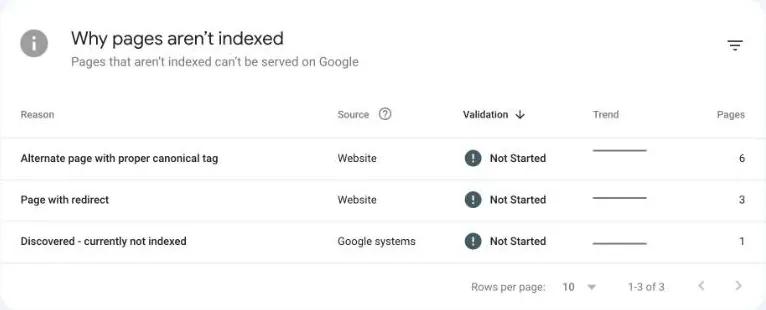
Our Pages report for corren.studio on Oct 30, 2026.
Wix also suggests checking for thin pages, and recommends "at least 250-400 words on the page" (Wix Help Center). That's one platform's guidance rather than a Google rule. A useful test is whether the page clearly says what you do and where you do it. If the page itself is the problem, more settings won't fix it, and that's where website design comes in.
Showing up versus ranking
Getting indexed puts your page in Google's library. Ranking decides whether anyone sees it for a search like "emergency plumber in Tampa," and that takes a page written for that search. Our HVAC and plumbing page and Tampa page show the kind of specifics a page like that can cover. Some changes take effect within hours and others "could take several months" (SEO Starter Guide).
To see which searches you already appear for, open the Performance report in Search Console and look at Queries. Your business name may lead the list. It did for corren.studio in the 28 days to Oct 28, 2026, though that's one young site rather than a rule. The other queries are the ones to build on with pages that answer them well.
Our SEO service page explains how we approach this. If you also run ads to these pages, our guide to Google Ads clicks with no leads covers what to check after the click.
Frequently asked questions
How long does it take for a website to show up on Google?
It can take a few weeks for Google to notice a new site or a change to an existing one. Once you request indexing for a page, Google says that typically takes a day or so but can take much longer. Neither timeline is guaranteed (Google Search Central, Search Console Help).
Do I have to submit my website to Google?
Usually not. Google says you "usually don't even need to do anything except post your site on the web" (Google Search Central). Submitting a sitemap or requesting indexing can help when Google has missed your site.
Why does my website show up when I search my business name but not my services?
Your site is indexed, but it isn't ranking for those broader searches yet. Other pages are competing for them. Add a clear page for each main service and location, link to those pages from your menu, and use the Performance report to see what's starting to appear.
Why can't I find my site even though Search Console says it's on Google?
"URL is on Google" means a page is eligible to appear, not that it will appear for every search. Try site:yourdomain.com plus a word from the page. If it appears there, your page is indexed and the issue is ranking.
Sources (15)
Retrieved October 30, 2026.
- Get your website on Google, Google Search Central, updated 2025-12-10
- SEO Starter Guide, Google Search Central, updated 2025-12-10
- Google Search Essentials, Google Search Central, updated 2025-12-10
- Block Search indexing with noindex, Google Search Central, updated 2025-12-10
- Build and submit a sitemap, Google Search Central, updated 2026-07-08
- Verify your site ownership, Search Console Help
- URL Inspection tool, Search Console Help
- Page indexing report, Search Console Help
- Business Profile: add your website and business information, Google Business Profile Help
- Site or pages not appearing in search engine results, Wix Help Center
- Submitting your sitemap directly to Google, Wix Help Center
- Why doesn't my site appear in Google search results?, Squarespace Help Center
- View your site map, Squarespace Help Center
- How to get your service business found on Google, GoDaddy Airo, modified 2026-09-22
- How to submit your website to search engines, GoDaddy, 2022-08-04